Schedules let the panel run tasks automatically so you don't have to babysit your server. You can restart it nightly, send timed in-game commands, and keep things running smoothly, all without lifting a finger.
Where to find Schedules
Log in to panel.8bit-hosting.com, open your server and click Schedules in the left sidebar. You'll see a list of any existing schedules (empty to start).
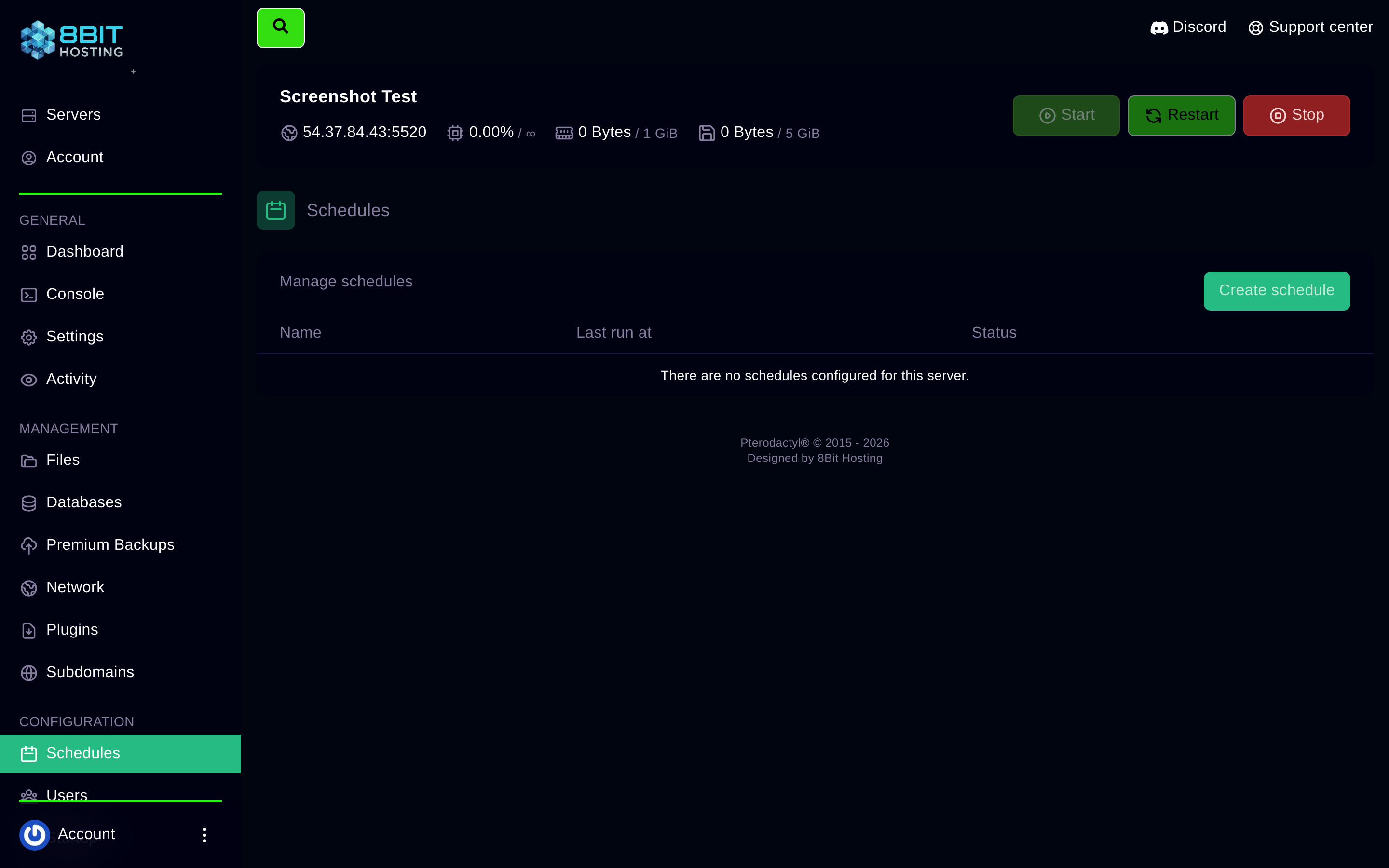
Creating a schedule
- Click Create schedule
- Give it a name, e.g. "Nightly restart"
- Set the cron expression (see below)
- Add one or more tasks
- Click Create schedule to save
Understanding cron expressions
A cron expression has five parts: minute hour day month weekday. Use * for "every".
0 4 * * *: every day at 4 AM0 */6 * * *: every 6 hours30 3 * * 0: every Sunday at 3:30 AM0 0 * * *: midnight every day
Useful tool: crontab.guru lets you type plain English and get the cron expression.
Useful task types
- Power action → Restart: gracefully restarts the server (recommended over Kill)
- Power action → Stop + Start: use two tasks with an offset if you need a full cold restart
- Send command: sends a console command to the running server (e.g.
save-allbefore a restart, or a broadcast message)
Example: nightly warning + restart
- Task 1 at offset 0 min: Send command →
say Server restarting in 5 minutes, please save your progress! - Task 2 at offset 5 min: Power action → Restart
This warns players before the restart so they don't lose progress.
Need help setting one up? Ask in Discord or email support@8bit-hosting.com.
 8Bit Hosting