SFTP lets you move large files, mod packs, world saves, whole directories, much faster than the browser file manager. Here is how to set it up.
Get your SFTP details
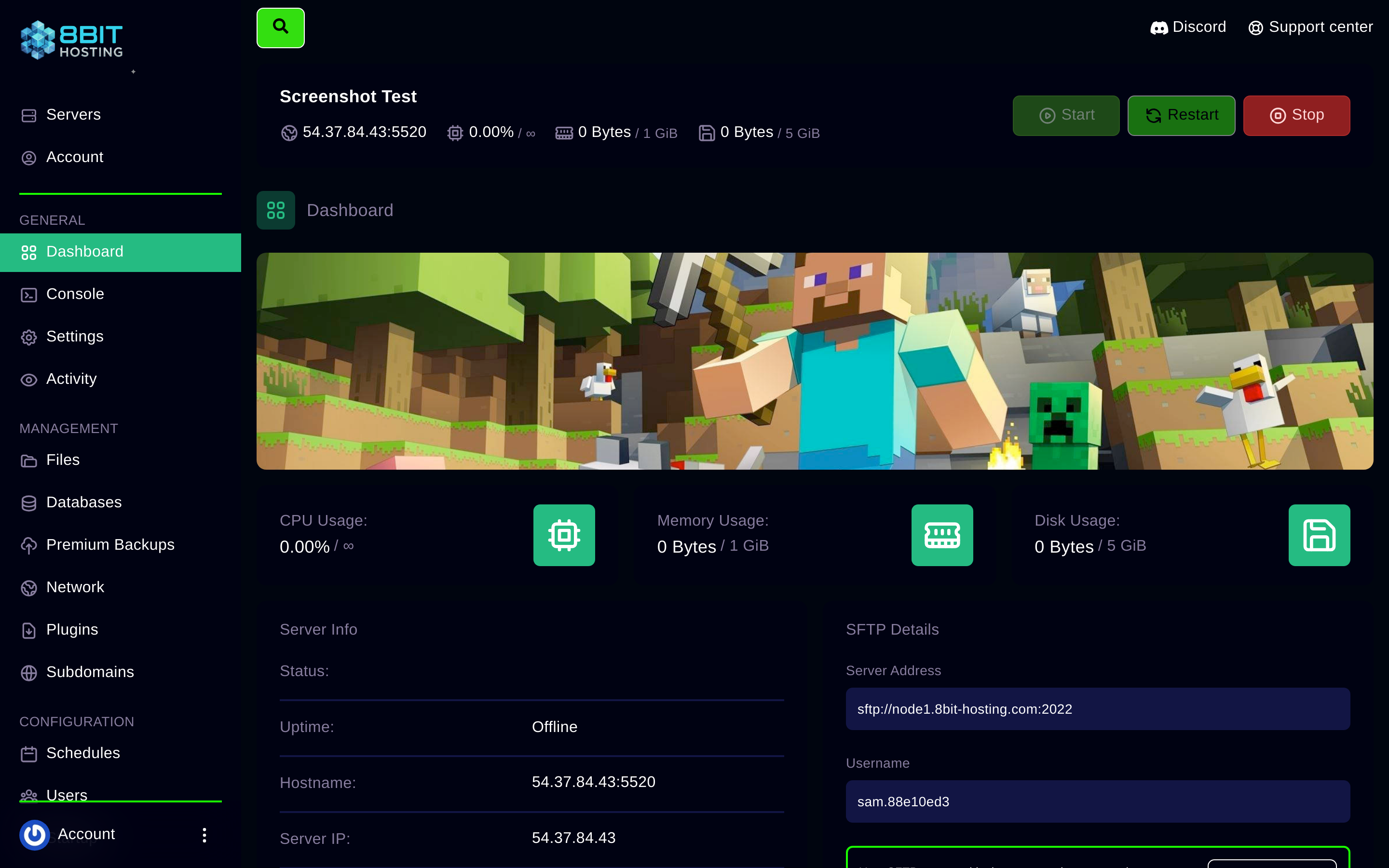
Log in to panel.8bit-hosting.com, open your server and click Dashboard in the left sidebar. At the bottom of the page you'll see:
- SFTP Address: e.g.
panel.8bit-hosting.com:2022 - Username: pre-filled with your account username
- Password: your panel login password
Connect with FileZilla (recommended)
- Download FileZilla from filezilla-project.org (free)
- Open it and go to File → Site Manager → New Site
- Set Protocol to SFTP
- Enter the host as
panel.8bit-hosting.comand port as2022 - Set Logon Type to Normal, enter your username and panel password
- Click Connect: accept the host key if prompted
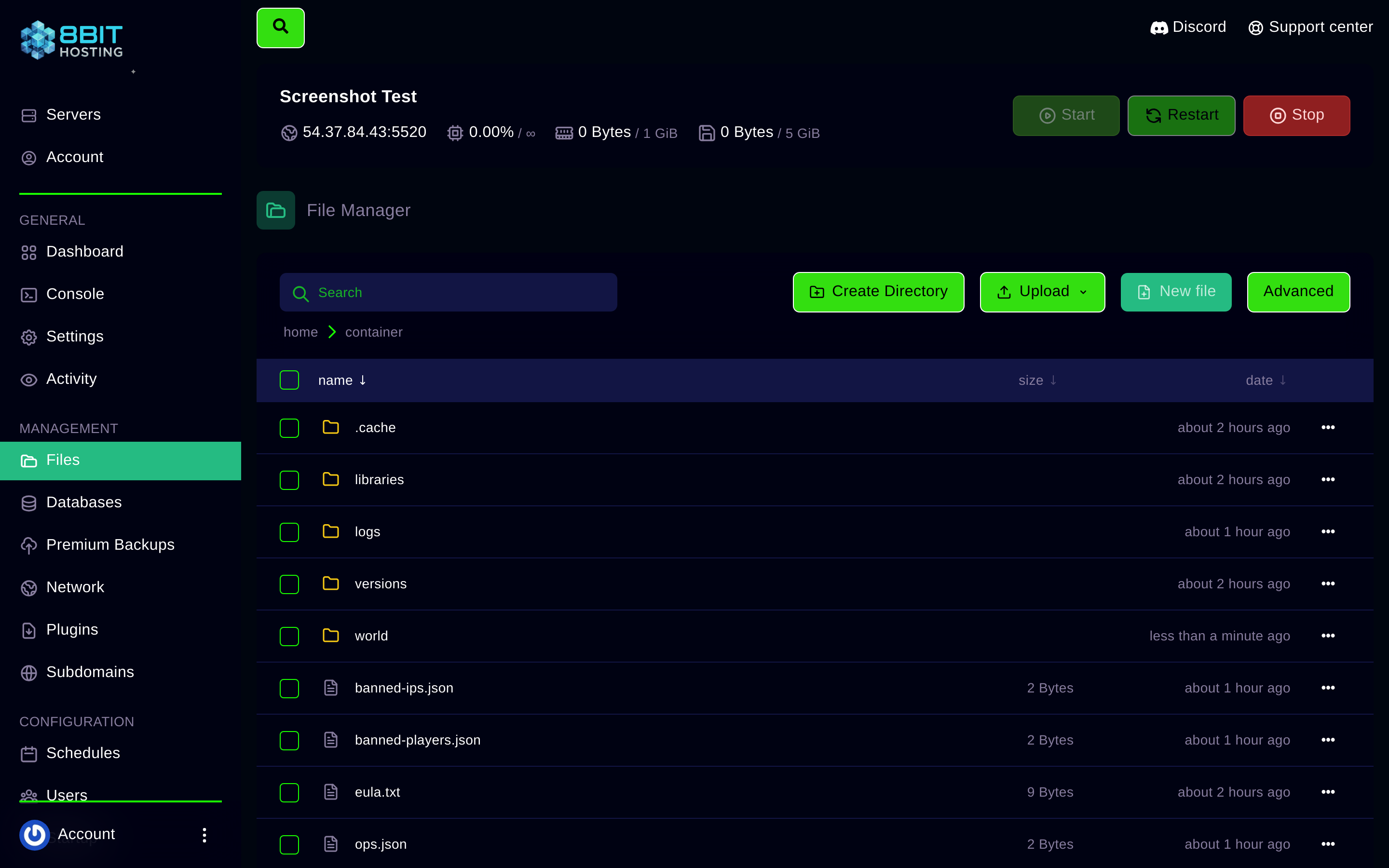
Your server's files appear on the right. Drag files from your PC (left panel) to the server (right panel) to upload, or the other way to download.
Connect with WinSCP
- Open WinSCP and choose SFTP as the protocol
- Host:
panel.8bit-hosting.com, Port:2022 - Enter your username and password, then click Login
Tips
- Stop the server first when replacing large files, a running server may lock files and cause corruption.
- Use the SFTP client to upload an entire
plugins/ormods/folder in one drag. - If the connection times out, check that your panel password is correct, it's separate from your store/billing account password.
Need help? Open a ticket in Discord or email support@8bit-hosting.com.
 8Bit Hosting