
The in-browser file manager is great for quick edits, but for uploading large modpacks, world saves or hundreds of files at once, SFTP with FileZilla is the fastest option.
What you'll need
- FileZilla: free download from filezilla-project.org (the Client version)
- Your SFTP connection details from the panel
Step 1: Get your SFTP details
Log in at panel.8bit-hosting.com and click your server. The Dashboard tab shows your SFTP connection information.
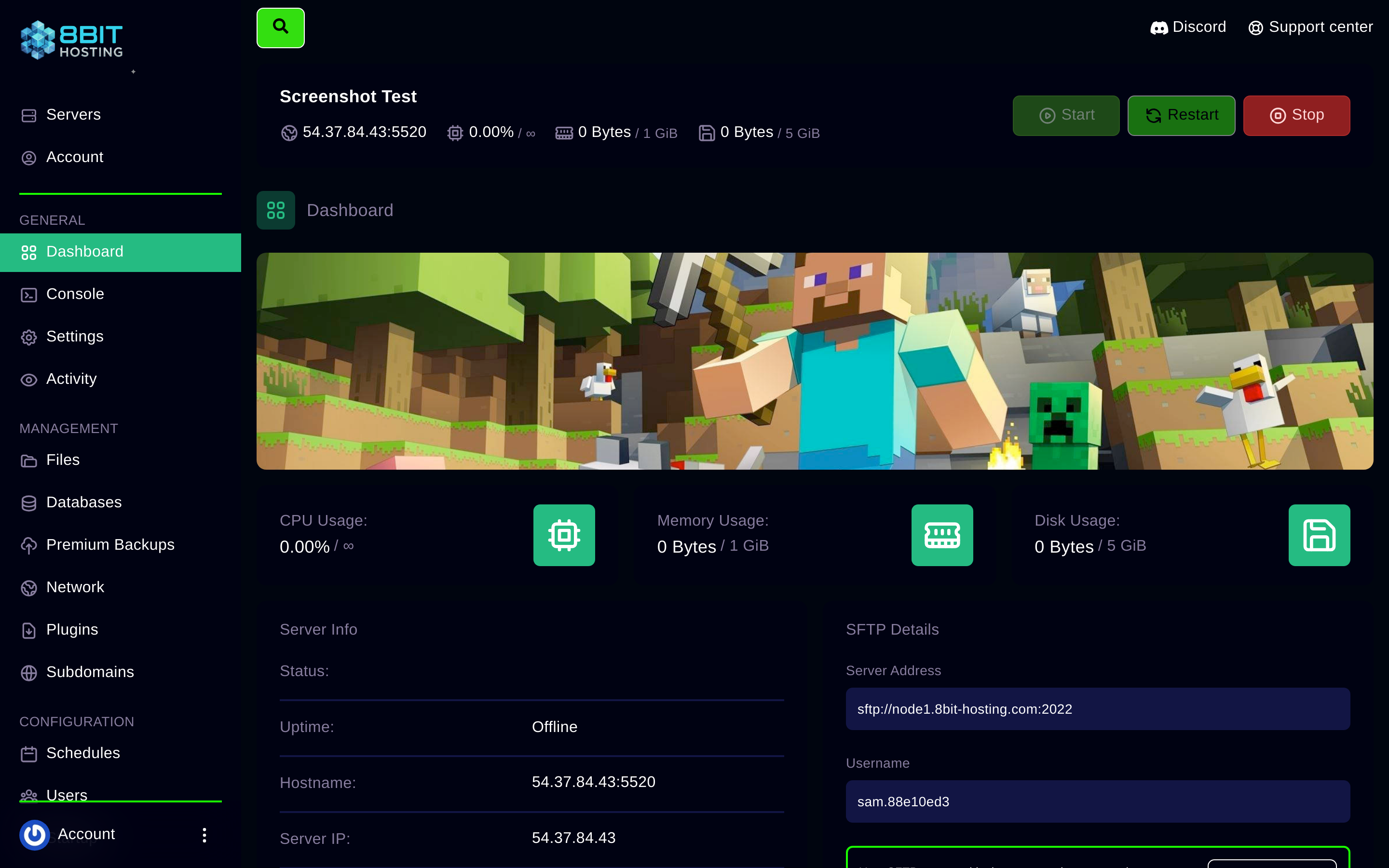
- Host:
panel.8bit-hosting.com - Port:
2022 - Username: shown in the panel
- Password: your panel password
Step 2: Open FileZilla and connect
- Open FileZilla and go to File then Site Manager (or press Ctrl+S).
- Click New Site and give it a name like 8Bit Hosting.
- Set Protocol to
SFTP - SSH File Transfer Protocol. - Enter the host, port, username and password from the panel.
- Set Logon Type to
Normal. - Click Connect.
Step 3: Transfer files
FileZilla shows your local files on the left and your server files on the right. Drag files left to right to upload, right to left to download. You'll see your server.jar, server.properties, plugins folder, world and everything else.
Tips
- Stop the server before uploading large world saves to avoid corruption.
- If uploading a world, overwrite the existing
world,world_netherandworld_the_endfolders entirely. - If you get "Connection timed out", confirm the port is
2022: not the default 22.
Resetting your SFTP password
Go to your server, click Settings and then Change SFTP Password. This only changes the SFTP password, not your main panel login.
Need help? Join our Discord or email support@8bit-hosting.com.
 8Bit Hosting