Your server lives inside the 8Bit Hosting panel, powered by Pterodactyl. Here is what every section does and how to use it.
The server list
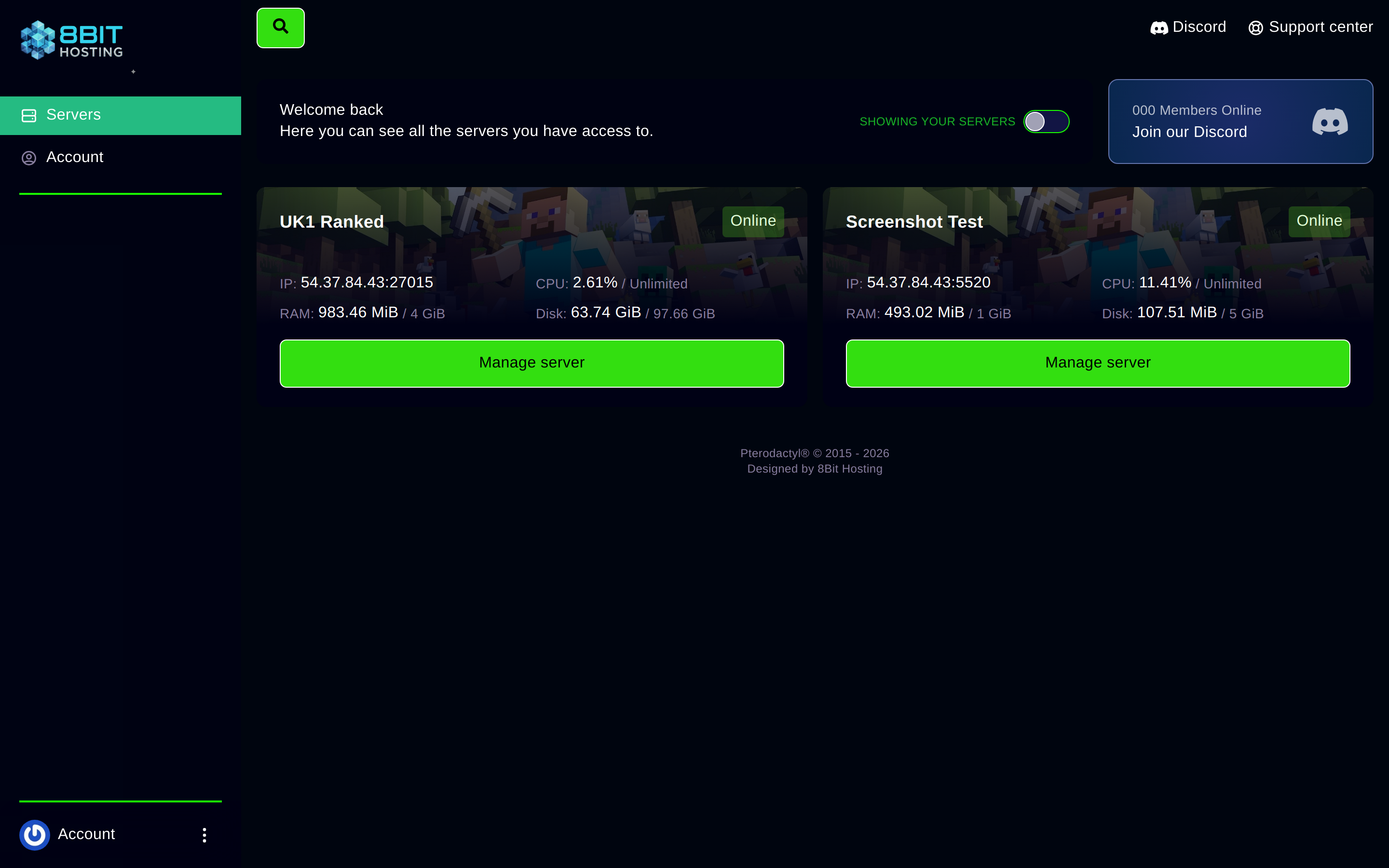
When you log in you land on the server list. Each card shows the server name, its current status (green = Online, grey = Offline), the IP address you use to connect, and live CPU / RAM / Disk usage. Click Manage server to open a server.
The left-hand navigation
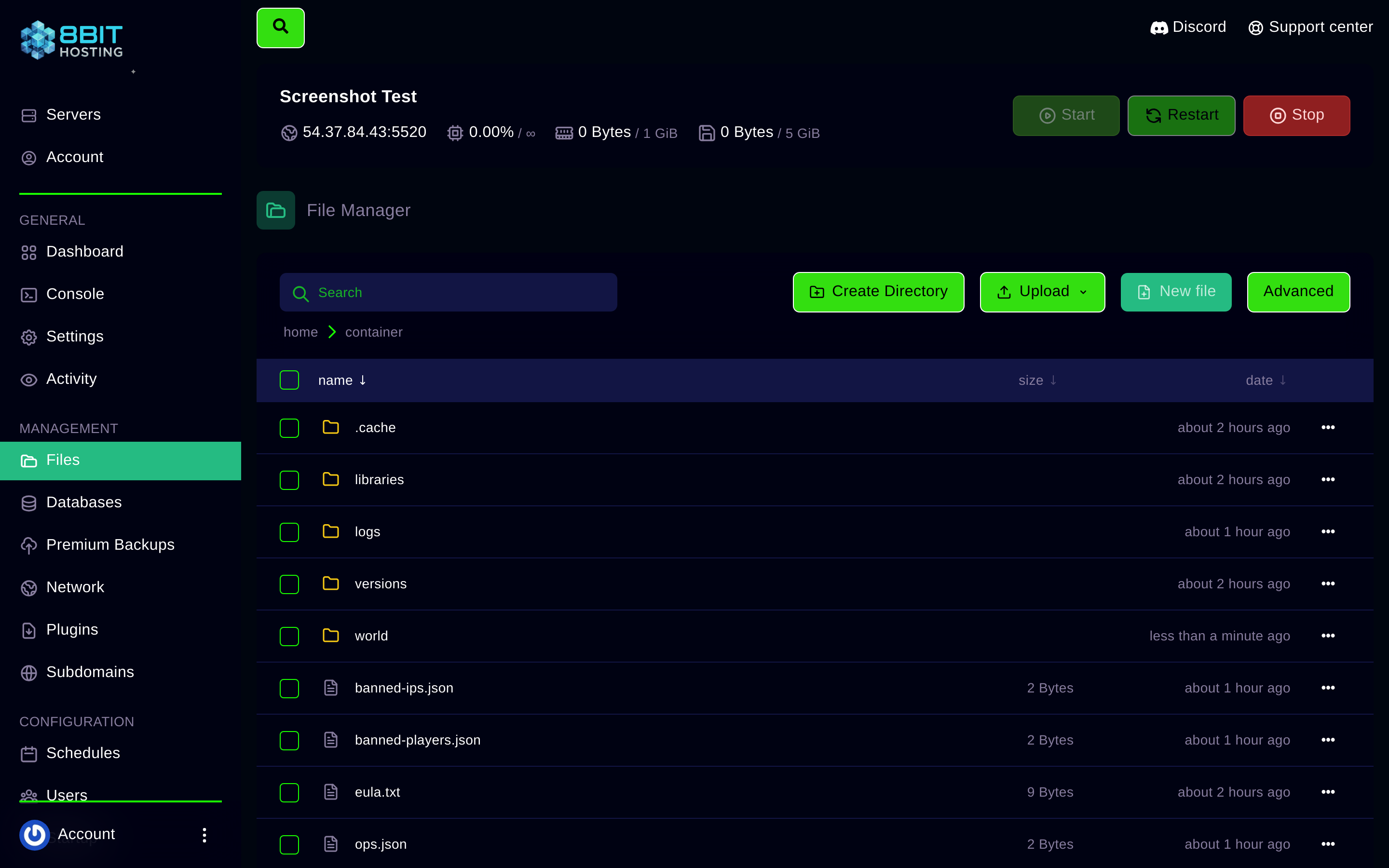
Once inside a server the sidebar shows every available section:
- Dashboard: resource usage overview and SFTP details
- Console: live server output; send commands from here
- Files: browse, edit and upload files in-browser
- Databases: create MySQL databases for mods/plugins
- Schedules: automate restarts, commands and backups on a cron timer
- Users: invite others to access your server with specific permissions
- Premium Backups: encrypted off-site backups via Restic (add-on, £3.99/mo per server)
- Network: view and manage port allocations
- Subdomains: set a free
*.8bit-hosting.comconnect domain - Startup: change server type, version and launch arguments
- Settings: rename the server, change the SFTP password
- Activity: audit log of who did what
Starting, stopping and restarting
Open the Console tab. The three power buttons in the top-right corner control the server. Start boots it up, Stop sends a graceful shutdown command, and Restart does both in one click. The status badge turns green once the game is fully running.
The Console, sending commands
The live log scrolls automatically so you can see player joins, chat and errors in real time. To run an in-game command, type it into the input box at the bottom of the console and press Enter. No leading / is needed for server-side commands (e.g. type say Hello not /say Hello).
File Manager
Click Files in the sidebar. You'll see your server's root directory, all the game files live here. Click any file to edit it in-browser (perfect for server.properties, config files, ops.json). Use the Upload button to drop in plugin JARs, world saves or custom content. Right-click a file or folder for rename, copy, move, compress and delete options.
Schedules
Click Schedules to automate tasks. The most common use is a nightly restart:
- Click Create schedule
- Name it (e.g. "Nightly restart") and set a cron expression,
0 4 * * *runs at 4 AM every day - Add a task: choose Power action → Restart
- Save, done. The panel handles it automatically from now on.
Premium Backups
Click Premium Backups in the sidebar and hit CREATE BACKUP. Restic encrypts your data and stores it off-site on a separate storage system. Once a snapshot appears in the list, use the restore button to roll back to it at any time. Take a backup before installing mods or making major config changes.
SFTP, bulk file transfers
For uploading large folders (mod packs, world saves), SFTP is faster than the browser file manager. Go to Dashboard: the SFTP details (host, port, username) are shown at the bottom of the page. Use your panel password to connect with FileZilla, WinSCP or Cyberduck. The default SFTP port on 8Bit Hosting is 2022.
Need help?
Join our Discord or email support@8bit-hosting.com and we'll get back to you fast.
 8Bit Hosting