
Off-site backups store an encrypted copy of your server on completely separate hardware. This guide covers adding a plan, creating snapshots and restoring.
Step 1: Choose a backup plan
Go to your billing area, find your server subscription and look for the Off-Site Backups add-on. Choose from:
- Daily Automatic (1.99 per month) - Every day at 3 AM, 7 snapshots kept.
- Weekly Automatic (0.99 per month) - Every Sunday at 3 AM, 4 snapshots kept.
- On-Demand (1.49 per month) - No schedule, trigger manually, 5 snapshots kept.
- Daily + On-Demand (2.99 per month) - Daily automatic plus manual triggers, 14 snapshots kept.
Step 2: Open the Premium Backups tab
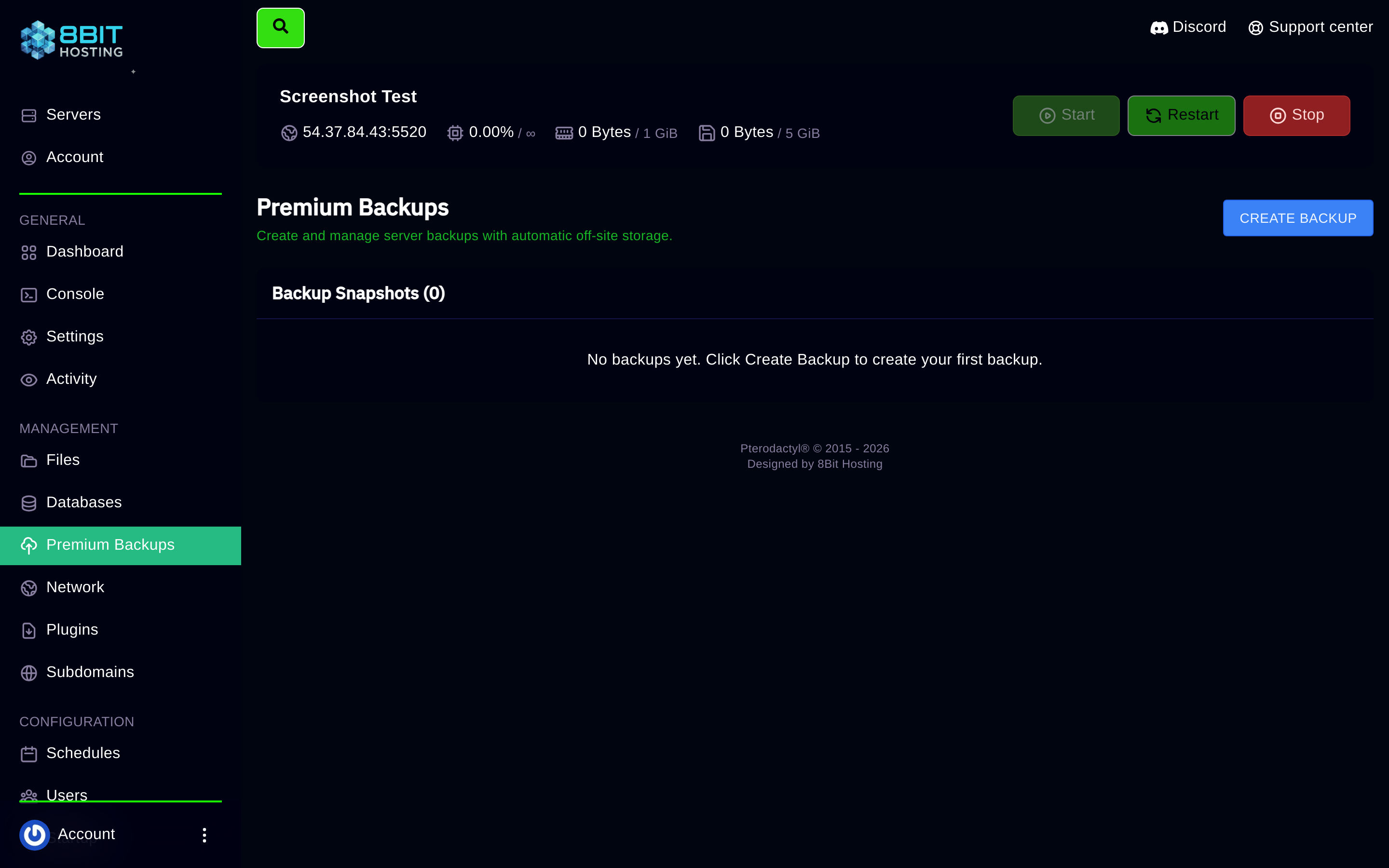
Log in at panel.8bit-hosting.com, open your server and click Premium Backups in the sidebar.
Step 3: Create a manual backup
If your plan includes manual backups, click Create Backup. The backup runs in the background. Large servers may take a few minutes.
Step 4: Restore from a backup
Each snapshot shows its date and time. Find the snapshot you want and click Restore. Confirm the prompt. Your server restarts automatically once the restore is complete, usually under two minutes.
Is my data secure?
Yes. All backups are encrypted with a unique key before leaving the panel. Data is stored on entirely separate hardware in a different location to your game server.
Questions? Join our Discord or email support@8bit-hosting.com.
 8Bit Hosting